How to add virtual try-on to a Shopify store.
Adding a virtual try-on to a Shopify store takes about ten minutes. Choosing the right one takes longer, and getting shoppers to actually use it takes longer still.
This guide covers the three in order: what to decide before you install, how the installation itself works on Shopify, and what to measure once it is live.
We publish OptiDress, one of the apps in this category. The choices below apply whichever app you pick.
Decide three things before you install
1. What the shopper has to provide
This is the decision that shapes everything else, and most listings bury it.
A photo. Most apps generate the garment onto a photograph the shopper uploads or takes on the spot. The rendering is photorealistic. The constraint is that every shopper unwilling to photograph themselves mid-purchase is a shopper the tool never serves — and no vendor publishes that share, ourselves included.
Camera access. Augmented-reality apps superimpose the product on a live camera feed. No upload, but the shopper still has to grant camera permission, which is its own friction and works better on accessories than on clothing.
Nothing but measurements. Avatar-based apps build a 3D figure from height, weight and body shape. No photo, no camera. The rendering is an avatar rather than a photograph, which is less shareable and more private.
There is no universally right answer. There is a right answer for your customers, and you will only know it by testing.
2. Whether it answers the size question
A try-on shows what the garment looks like. It does not necessarily say which size to order.
That matters because the two doubts are different. How will this look on me is answered by an image. Which size do I order is answered by measurements — the shopper's, and the garment's.
Several apps in this category show the garment and document no size recommendation. If your returns are driven by size rather than by appearance, an app that only visualises will not move your numbers.
3. What the pricing is actually indexed on
Apps in this category price on one of three things: a monthly flat fee, a number of generations or try-ons included, or your store's traffic.
The one to check is what happens when you exceed the included volume. Some apps stop serving the try-on. Some bill each additional use. Some ask you to upgrade. On a store with seasonal peaks, that difference is the whole cost.
How the installation works on Shopify
Shopify makes this simpler than most platforms, and it is worth understanding why.
Theme app extensions, and what they change
An app distributed as a theme app extension is not injected into your theme's code. It is available as a block you add from the theme editor, like a native section.
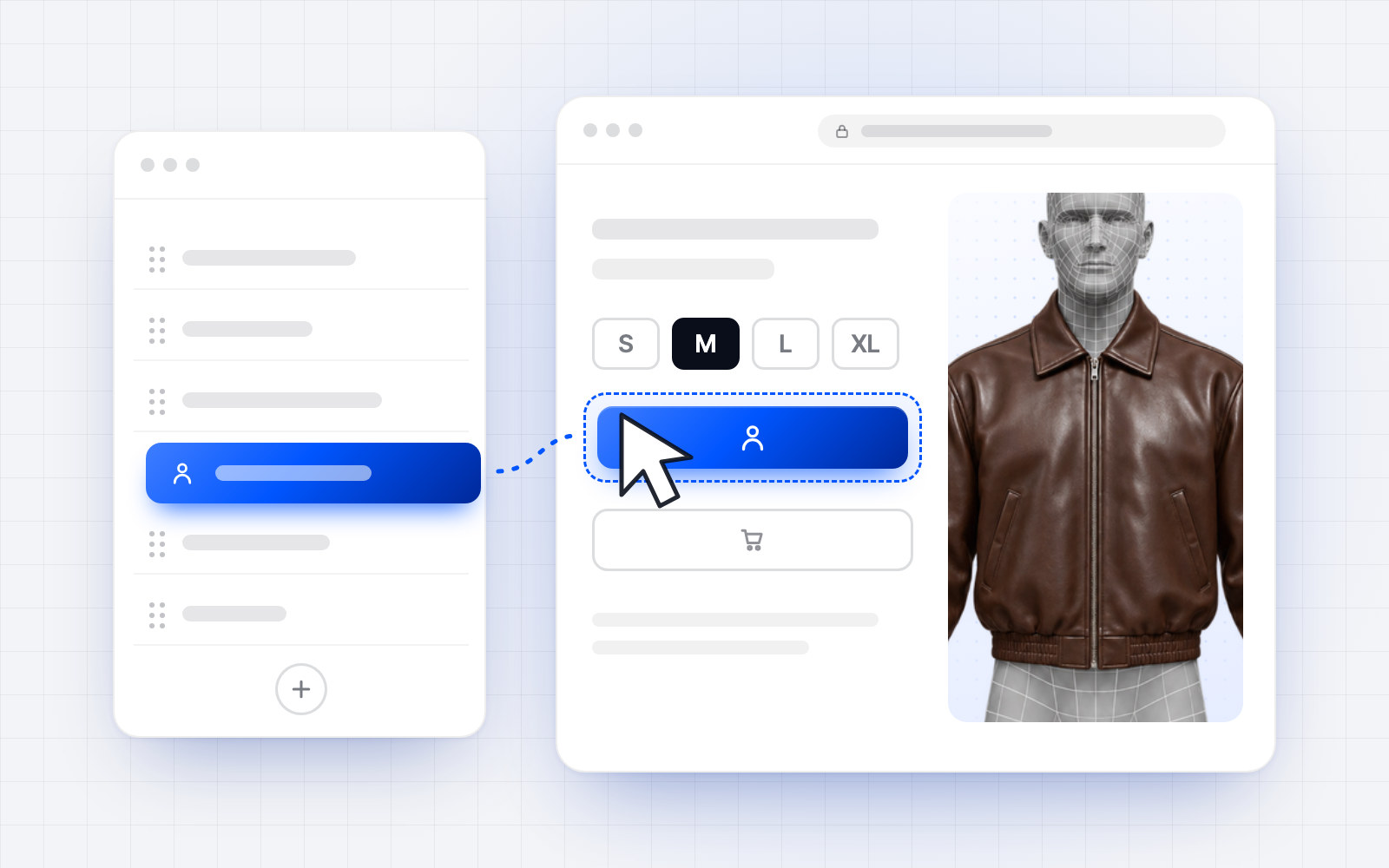
In practice: Online Store → Themes → Customize, open your product page template, add the app's block where you want it. You move it, disable it or remove it from the same place.
Three consequences worth knowing:
No file of your theme is modified. Not product.liquid, not theme.liquid. Your theme stays as it was, and removing the app leaves nothing behind.
You control the placement. Where the try-on appears on the product page is your decision, not the vendor's, and it does not require a developer.
Theme updates do not break it. A theme app extension lives outside the theme. Changing or updating your theme does not remove the app, though you will need to place the block again on the new theme's template.
One prerequisite: theme app extensions require an Online Store 2.0 theme. Every theme in the Shopify Theme Store has been since 2021. If you run a heavily customised older theme, check this before you start.
Apps that install a script instead
Not every app ships as a theme app extension. Some insert a script into your theme, which works but reverses all three points above: code in your theme, placement decided by the vendor, and something left behind when you uninstall.
The app listing does not always say which method it uses. If it matters to you, ask before installing.
Billing through Shopify
An app billed through Shopify's own billing appears on your Shopify invoice with your other apps, charged to the same payment method. No bank details to send the vendor, no separate invoice, and cancelling the subscription is uninstalling the app.
Apps billed directly by the vendor work too — it is simply a second payment relationship to manage.
Where to put the block
The try-on button belongs on the product page, and specifically near the decision point.
Next to the size selector is where the doubt actually occurs. The shopper has decided they want the garment; they are hesitating between M and L. A try-on placed there answers the question being asked at the moment it is asked.
Below the image gallery works too, and is more visible. It catches shoppers earlier, before they have committed to the product.
In a tab or an accordion is where try-ons go to be ignored. If it takes a click to discover the feature exists, most shoppers never will.
Test two placements on the same product over two weeks. The difference is usually larger than you expect.
Tell your customers it exists
This is the step most merchants skip, and it is the one that decides whether the app produces anything.
A try-on button on a product page is a new affordance. Shoppers do not look for what they have never seen. Left unannounced, usage rates stay low enough that no effect on conversion or returns is measurable.
Three things that help, in rough order of effect:
A banner or a homepage mention for the first few weeks. Something that says the feature exists before the shopper reaches the product page.
One email to your list. Your returning customers are the ones most likely to try it, because they already know your sizing and have been burned by it.
A visible label on the product page rather than an icon alone. “See it on you” outperforms a silhouette icon that shoppers do not recognise.
What to measure, and for how long
Install on five to ten real products rather than the whole catalogue. A smaller surface gives you a cleaner read and a faster rollback if something is wrong.
Then watch three numbers over at least two weeks:
The share of visitors who use the try-on. This is the number that gates everything else. If almost nobody uses it, no downstream effect is possible, and the problem is discovery or friction rather than the app.
Conversion on the products with the try-on, against comparable products without it. Not against last month — seasonality will mislead you.
Size-related returns on those products, which takes longer to read because returns lag purchases by weeks.
Two weeks of data on ten products tells you more than any vendor's case study, including ours.
Frequently asked questions.
Do I need a developer to install a virtual try-on on Shopify?
Not for an app distributed as a theme app extension: you add the block from the theme editor without opening a file. Apps that inject a script may need help if your theme is heavily customised.
Will it slow down my product pages?
It depends on the app. Ask whether the try-on loads on page load or only when the shopper opens it — the second is considerably lighter. Measure your product page speed before and after on a few products.
What happens to the app if I change themes?
A theme app extension survives a theme change, but you will need to place the block again on the new theme's product template. A script-based app usually has to be reinstalled.
Does virtual try-on reduce returns?
It addresses one cause of returns — uncertainty about fit and appearance. The effect depends on how many shoppers use it and whether it answers the size question. No vendor in this category, including us, publishes measured figures you can verify on your own store.
How long before I can tell whether it works?
Two weeks for usage and conversion, longer for returns, which lag purchases. Judging after three days is the most common mistake.