How to create AI on-model product photos for your Shopify store.
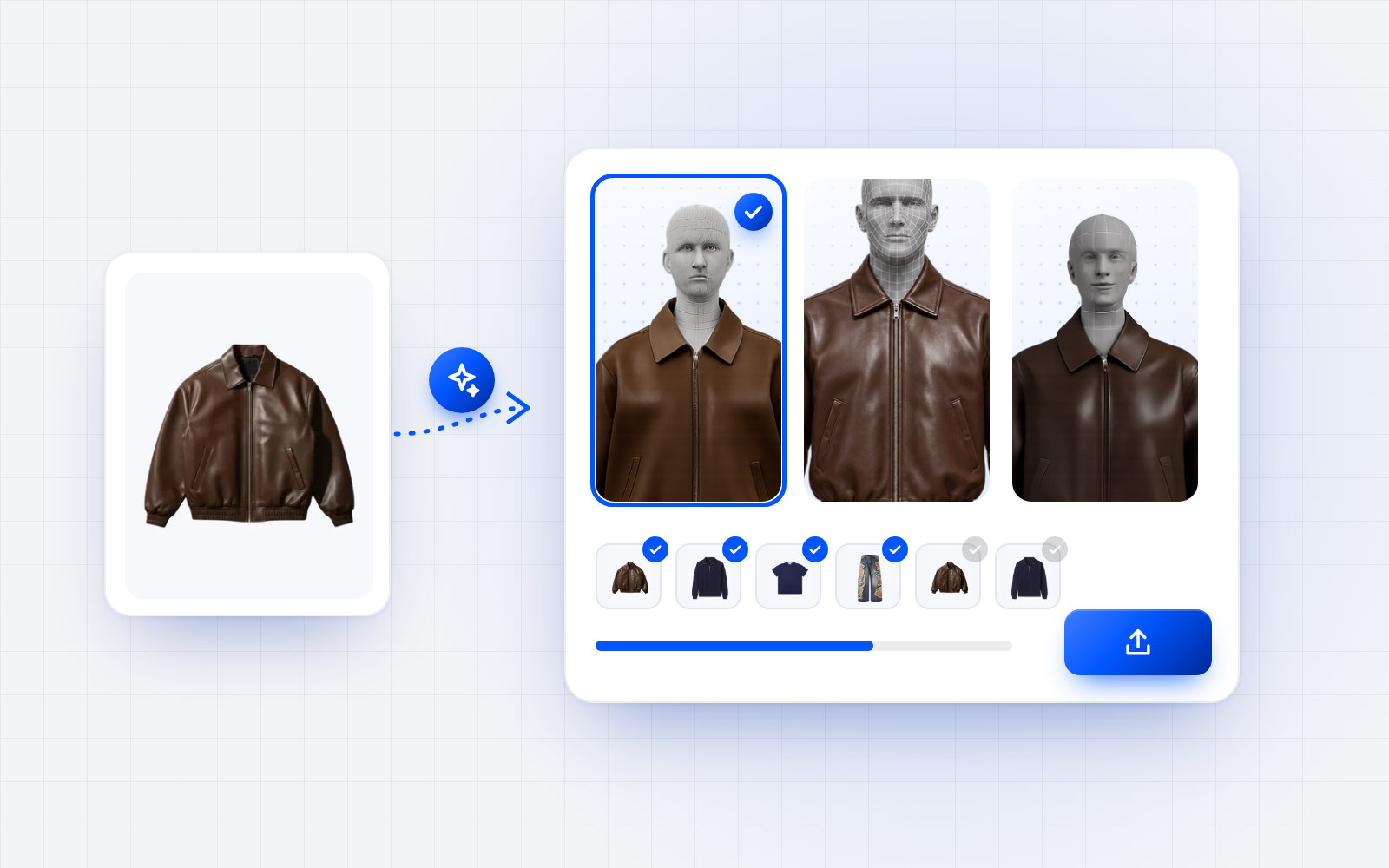
On a fashion product page, photos do the work before anything else. In the Baymard Institute's usability testing, 56% of users started by exploring the product images when they landed on a product page, before reading the title or the description. Yet many stores only have a flat lay or the supplier's photo, because a photoshoot for every collection is out of reach.
This guide explains how to add on-model, lifestyle and studio photos to a Shopify store without a photoshoot, what to prepare and check, and how to measure the impact. It uses Modelize as the main example: it's the Shopify app we recommend to fashion brands for their product photos.
Why on-model photos matter in fashion
A garment laid flat shows neither the drape, nor the length, nor the volume once worn. That's exactly what shoppers look for: again according to Baymard, 42% of users try to gauge the size of a product from its images. For clothing, the on-model photo gives that sense of scale.
It also shapes how the store looks. A catalog that mixes supplier photos, different backgrounds and uneven framing looks less polished, and in dropshipping the same images appear in dozens of competing stores.
Then there's the cost: models, photographer, studio and retouching for every collection. For a small brand, new arrivals often wait for the next shoot, or go live with a simple flat lay.
Three kinds of images, three jobs
Studio photos and packshots. The product on its own, on a neutral background, true to its colors and details. It's the reference on the product page and the thumbnail on collection pages.
On-model photos. The garment worn by a model: it shows the drape, the length and the proportions, and helps shoppers picture themselves in it.
Lifestyle photos. The piece in context, on the street, at home or on the road. Valuable for social media and ads, less useful for judging a cut.
A good gallery combines all three. The classic mistake is replacing the faithful product photo with a generated image: on-model photos come in addition, not instead.
What Modelize does
Modelize generates product photos from your existing photos, directly inside the Shopify admin, with no file exports or imports:
- on-model photos with AI-generated models of diverse body types and ethnicities;
- ready-made presets for lifestyle, studio and flat lay images;
- bulk generation across your whole catalog, rather than product by product;
- custom presets and models to keep the same look from one collection to the next, or a free-text description of the scene you want;
- automatic publishing of the images to your Shopify product pages;
- resolution up to 4K on higher plans, and an interface in 20 languages.
The app is built by Optify, a team based in Lyon, France, and launched on the Shopify App Store in April 2026. It carries the Built for Shopify badge, which Shopify gives to apps that meet its highest standards for performance, design and integration, and is rated 4.9 out of 5 from 26 reviews as of September 28, 2026.
Before you generate: what to prepare
Sharp source photos. A packshot or flat lay on a plain background, with accurate colors, where logos, prints and finishes are clearly visible. AI can only render what it sees: a blurry or poorly lit photo will produce approximate details.
A casting that looks like your customers. Ages, body types, skin tones: choose models your customers can see themselves in, rather than a single profile for the whole catalog.
One art direction per use. For example a studio preset for product pages and a lifestyle preset for social media, kept identical from one product to the next within a collection.
A shortlist of pilot products. Start with new arrivals that have no on-model photo, best-sellers that only have the supplier's photo, and products customers say “don't look like the photo”.
How to set up Modelize, step by step
- Install the app from the Shopify App Store. You log in with your Shopify account, with no separate signup.
- Choose a plan. The free plan lets you try it on a few products (10 images). Then come Starter at $19/month (100 images), Pro at $49/month (250 images, up to 4K) and Enterprise at $99/month (500 images, then $0.20 per image), billed in US dollars through Shopify, according to the pricing listed on the Shopify App Store on September 28, 2026.
- Select the products to work on, one by one or in bulk.
- Choose the look: a preset (studio, lifestyle, flat lay), a model, or a scene described in a few words.
- Generate, then review every image before publishing it (see the next section).
- Publish to your product pages, and check each image's alt text: it matters for accessibility and SEO.
Check every image before publishing it
A generated image commits your brand as much as a studio photo. Before publishing, check:
- color, against the real item: a shade that's off is a classic reason for returns;
- details: logos, prints, buttons, seams, sleeve and hem length;
- proportions: length and volume must match the garment, without flattering it;
- consistency: same model, same light and same framing within a collection;
- glitches: hands, faces, backgrounds.
Proportions matter most. According to McKinsey (2021), apparel sold online has a 25% return rate, compared with 20% across all channels, and 70% of those returns are caused by poor fit or style. A photo that flatters how a garment falls may sell it once, then see it come back in a parcel.
Where to place generated photos
In the gallery, keep a faithful photo of the product and put the on-model photo right next to it, in second position, or first if it's perfectly faithful and your collection pages are all framed the same way. Plan one on-model photo per color variant: a shopper who picks navy wants to see navy worn.
Lifestyle images belong further down the gallery, on featured collection pages, and above all in your social posts and ads.
Measure the impact
Judge the photos on sales figures, not just on how they look:
- add-to-cart and conversion rates of your pilot products, before and after, over several weeks (Shopify's reports are enough);
- return rate of those products, and reasons like “doesn't look like the photo”;
- time to publish new arrivals, and the photo budget saved compared with a shoot.
Give it at least a month of traffic on the pilot products before drawing conclusions, then extend to the rest of the catalog, collection by collection.
Mistakes to avoid
- Generating everything at once without reviewing images one by one.
- Mixing model and lighting styles within the same collection.
- Removing every real photo of the product.
- Forgetting color variants.
- Flattering the cut to the point of disappointing on delivery.
And what about size?
On-model photos show the garment on a model, not on the shopper. The question “which size should I get?” remains, and it's the one behind most fashion returns. That's what OptiDress handles on the product page: shoppers create a 3D avatar from their height, weight and body type, with no photo, see the garment on their avatar and get a size recommendation for each product. The two work together: photos that make shoppers want the product, then the right size when they buy.
Comparing product photo apps? Read our roundup of the best Shopify apps for AI product photos.
Frequently asked questions.
Do you still need a photoshoot with Modelize?
Not for catalog on-model, lifestyle or studio photos: Modelize generates them from your existing product photos. A photoshoot is still useful for a brand campaign or editorial images.
How much does Modelize cost?
A free plan lets you try it on a few products, then plans start at $19/month for 100 images, according to the pricing listed on the Shopify App Store on September 28, 2026.
Should generated photos replace the packshot?
No. Keep a faithful photo of the real product and add on-model photos next to it: they show the drape, while the packshot guarantees colors and details.
What's the difference between on-model photos and virtual try-on?
On-model photos show the garment on a model, the same one for every shopper. Virtual try-on, like OptiDress, shows it on the shopper's own avatar, with a size recommendation. The two complement each other.
How do you keep generated photos from increasing returns?
By checking each image's color, details and above all proportions before publishing it: a photo that flatters the cut disappoints on delivery.